Installing the Zoom App
Install the app.
Click Add to Zoom to open Popcorn Style’s listing in the Zoom App Marketplace, then select Install to add it to your Zoom account — signing in if prompted. Zoom lets you know once the app is ready to launch.
Add to Zoom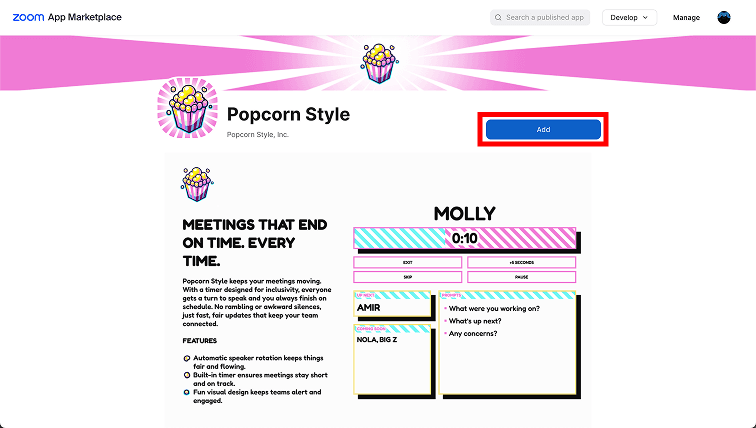
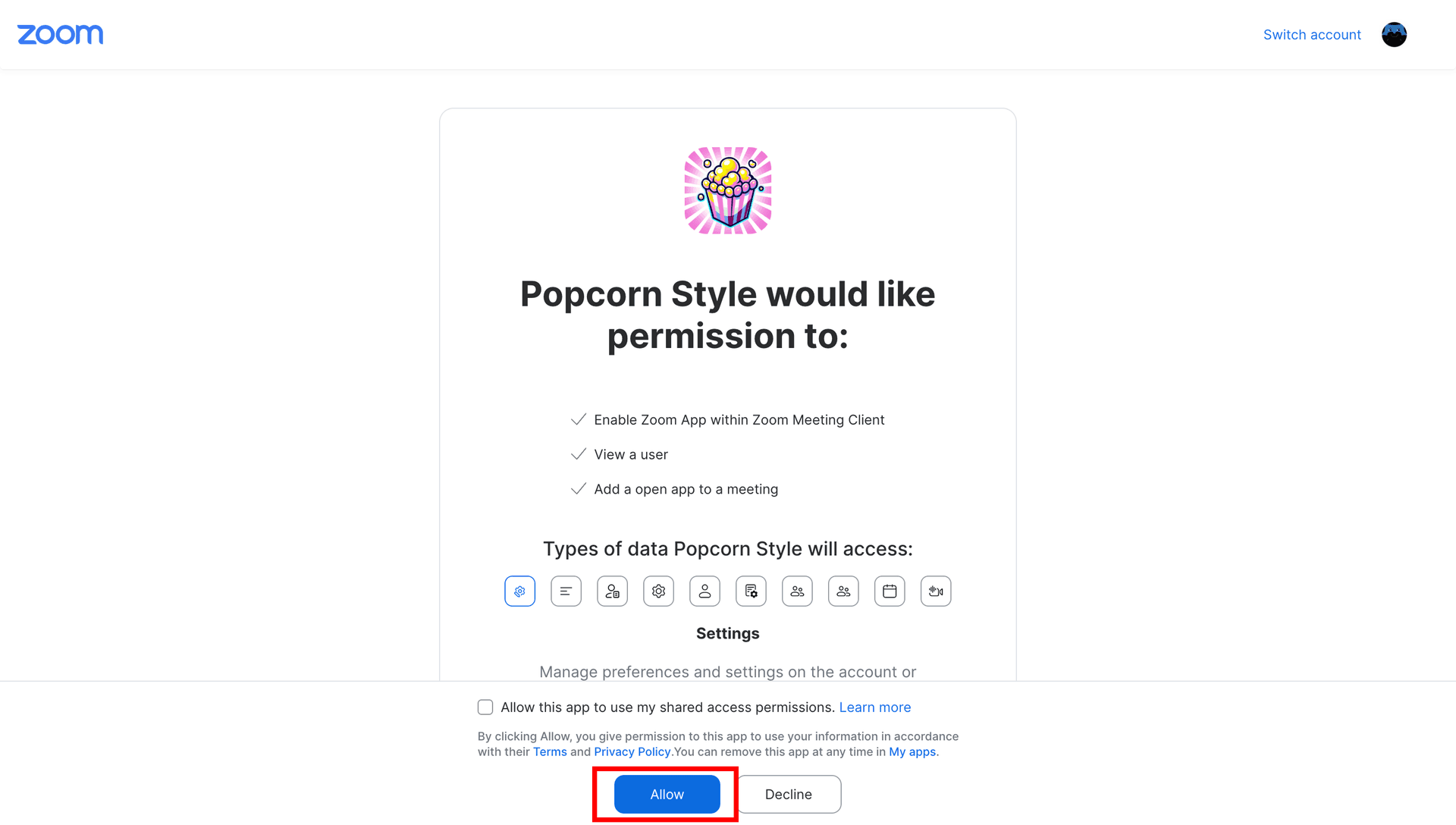
Click Allow to connect to Zoom.
The subsequent screen will show a dialog asking you to grant permission to your Zoom account. Popcorn Style does not receive audio, video or chat data from your meetings.
Log in to Popcorn Style
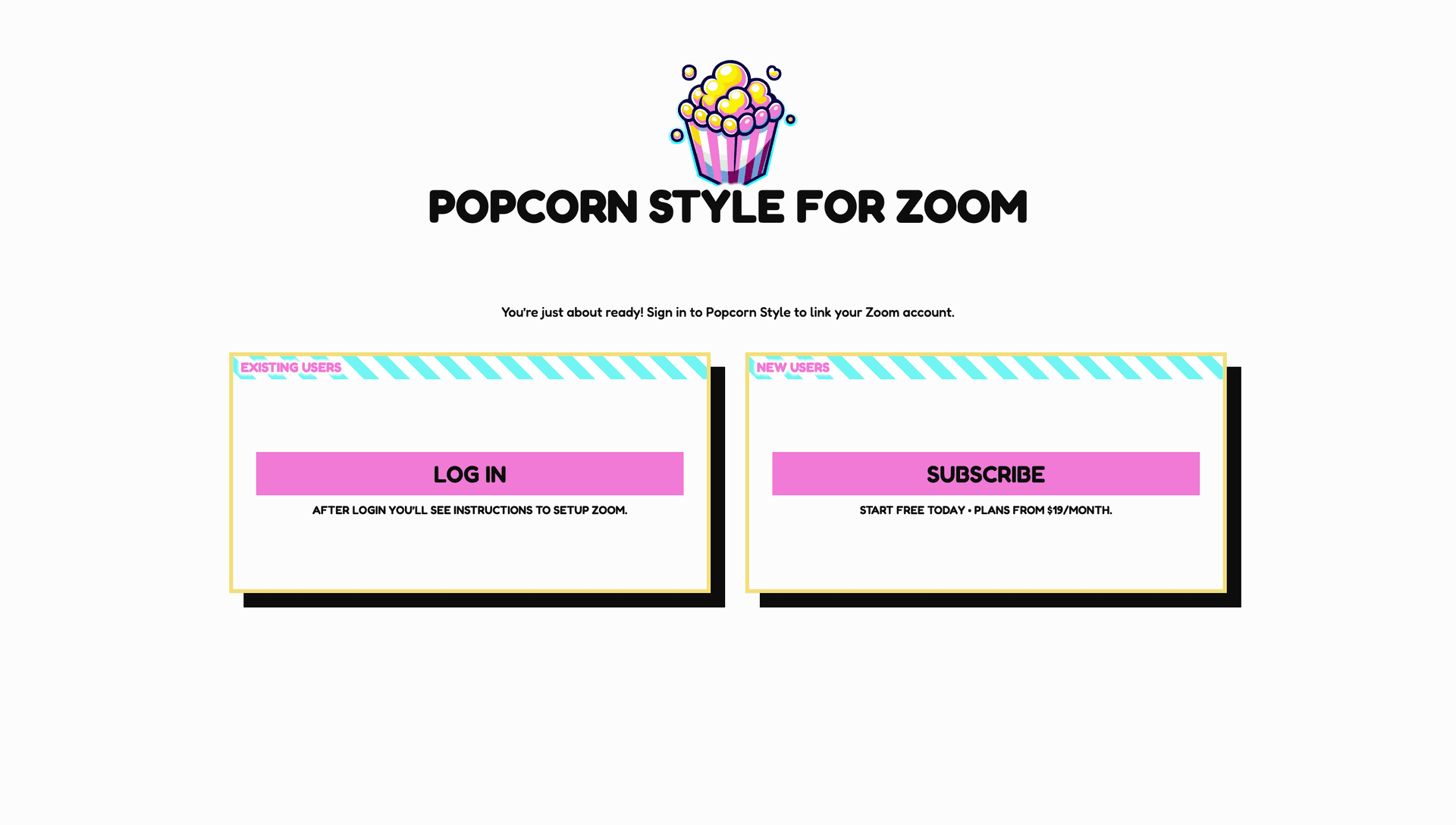
Sign in or create an account to link Zoom to your team. It’s optional at first: everyone gets 4 free Zoom meetings a month without an account, and any paid plan makes Zoom unlimited.
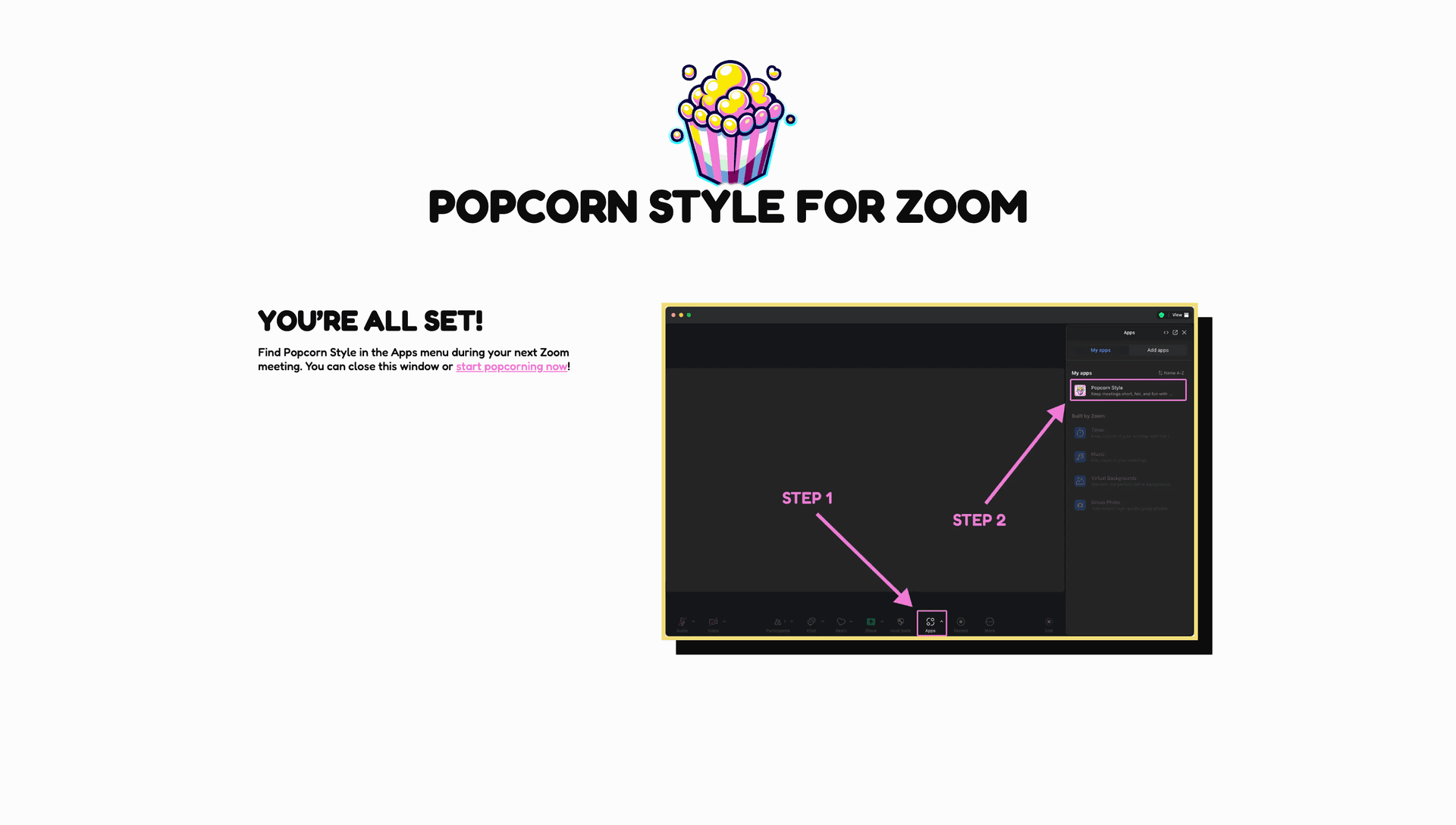
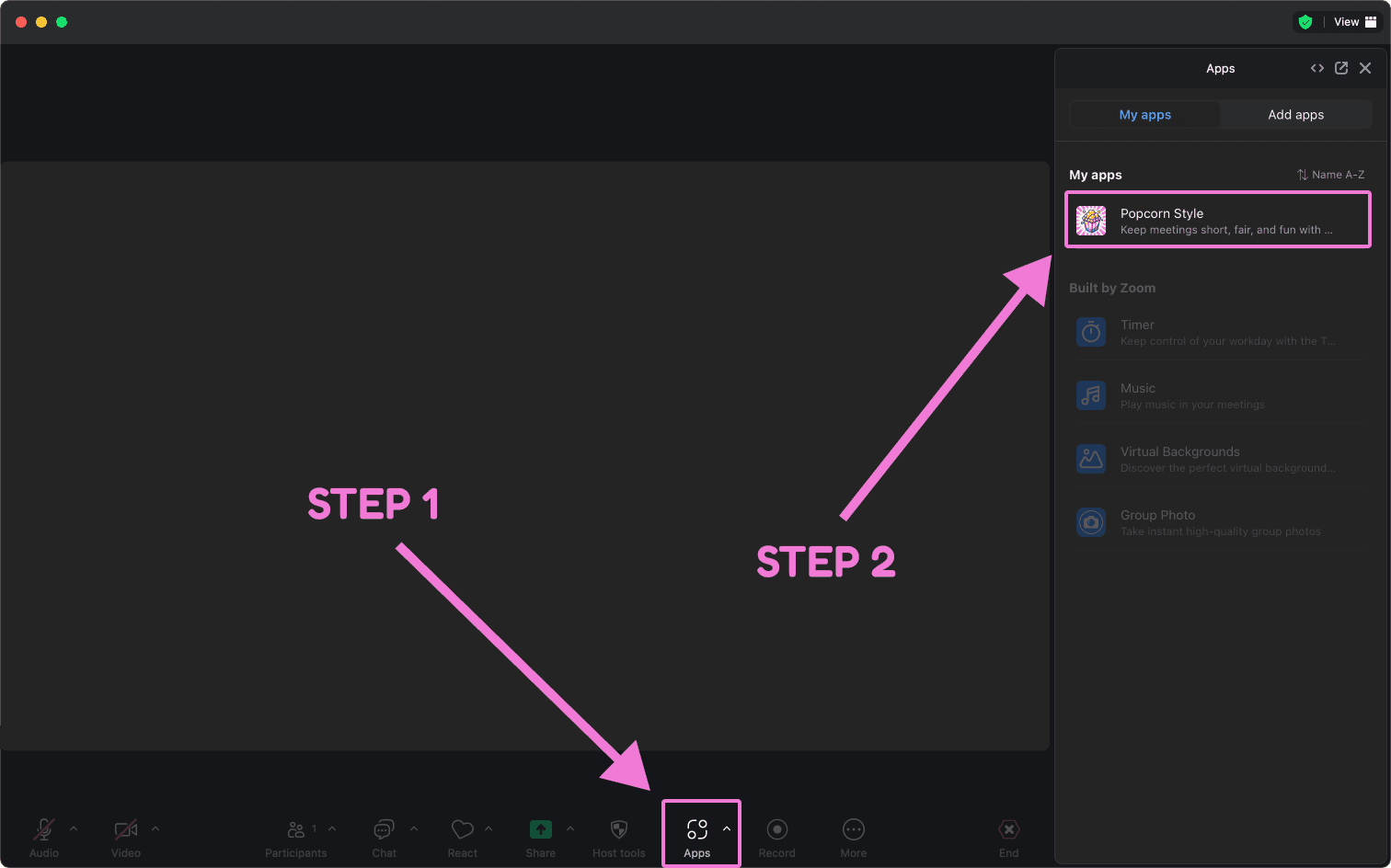
Start your Zoom meeting and open Popcorn Style
In your meeting, click the Apps icon in Zoom’s toolbar and choose Popcorn Style. If it isn’t pinned, open the Apps panel, search for Popcorn Style, and click Open.
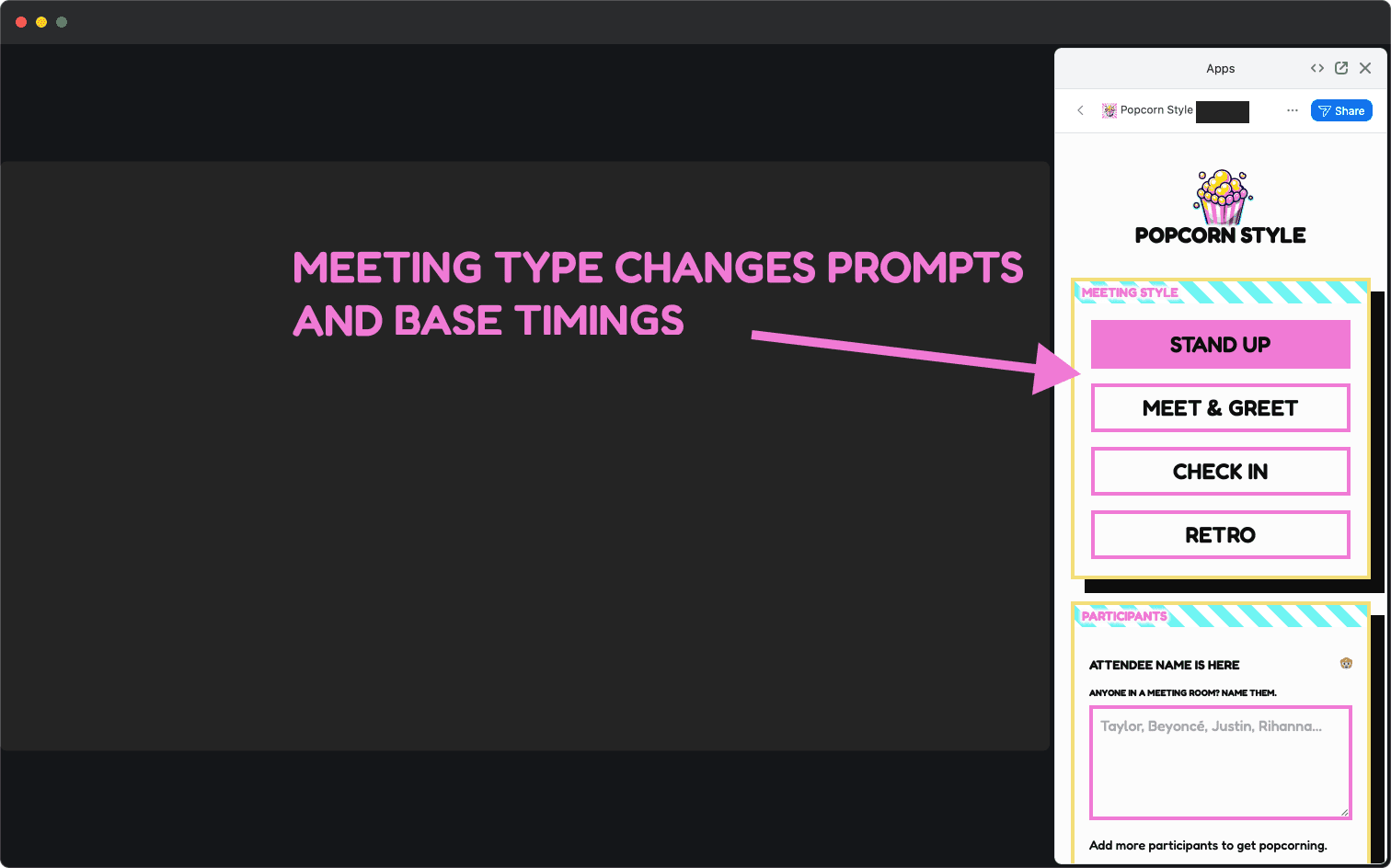
Set your meeting up
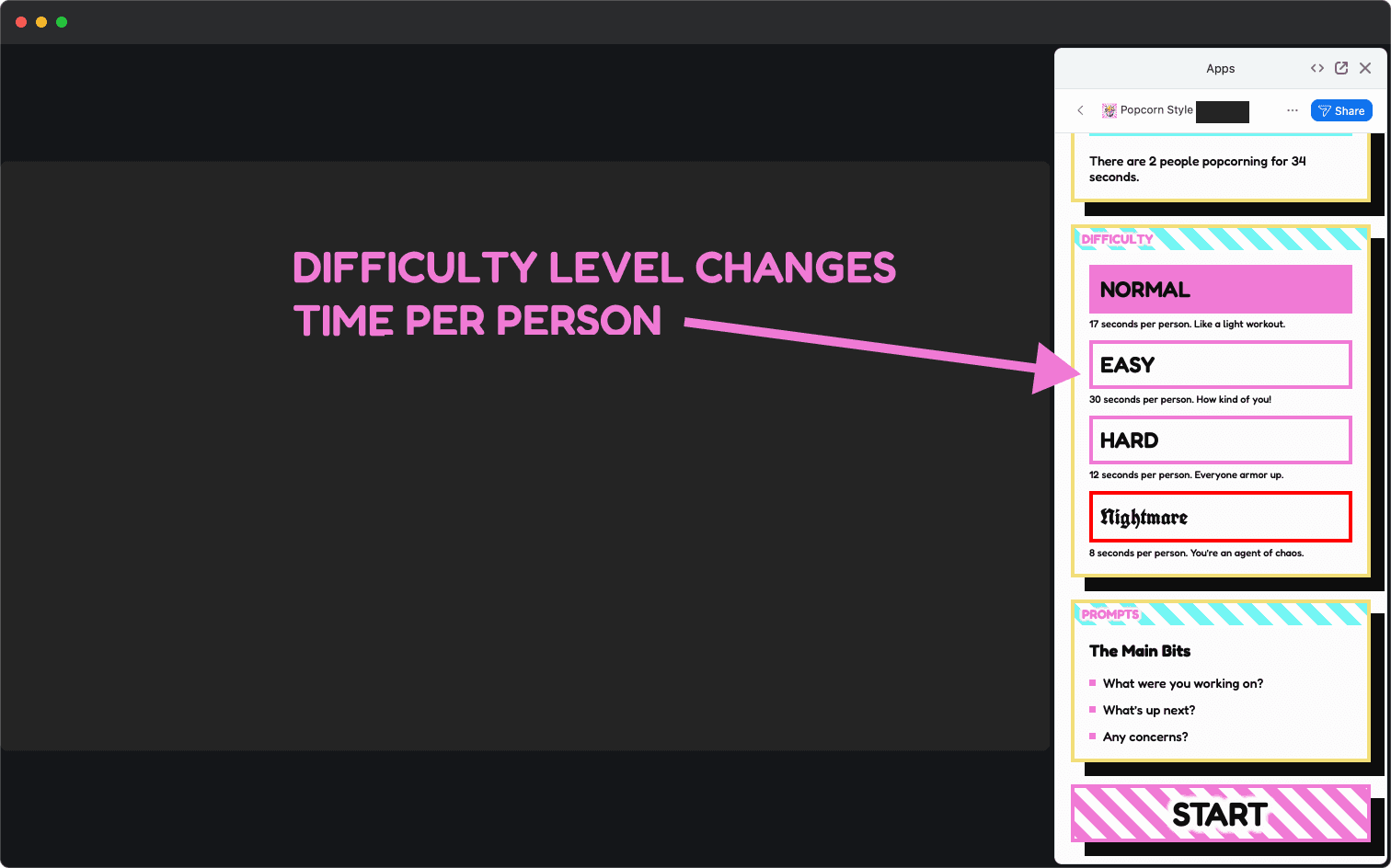
Pick a meeting type and set your “difficulty level” to your liking. Popcorn Style provides prompts for each meeting format, but feel free to customize to your heart’s desire.
Manage participants
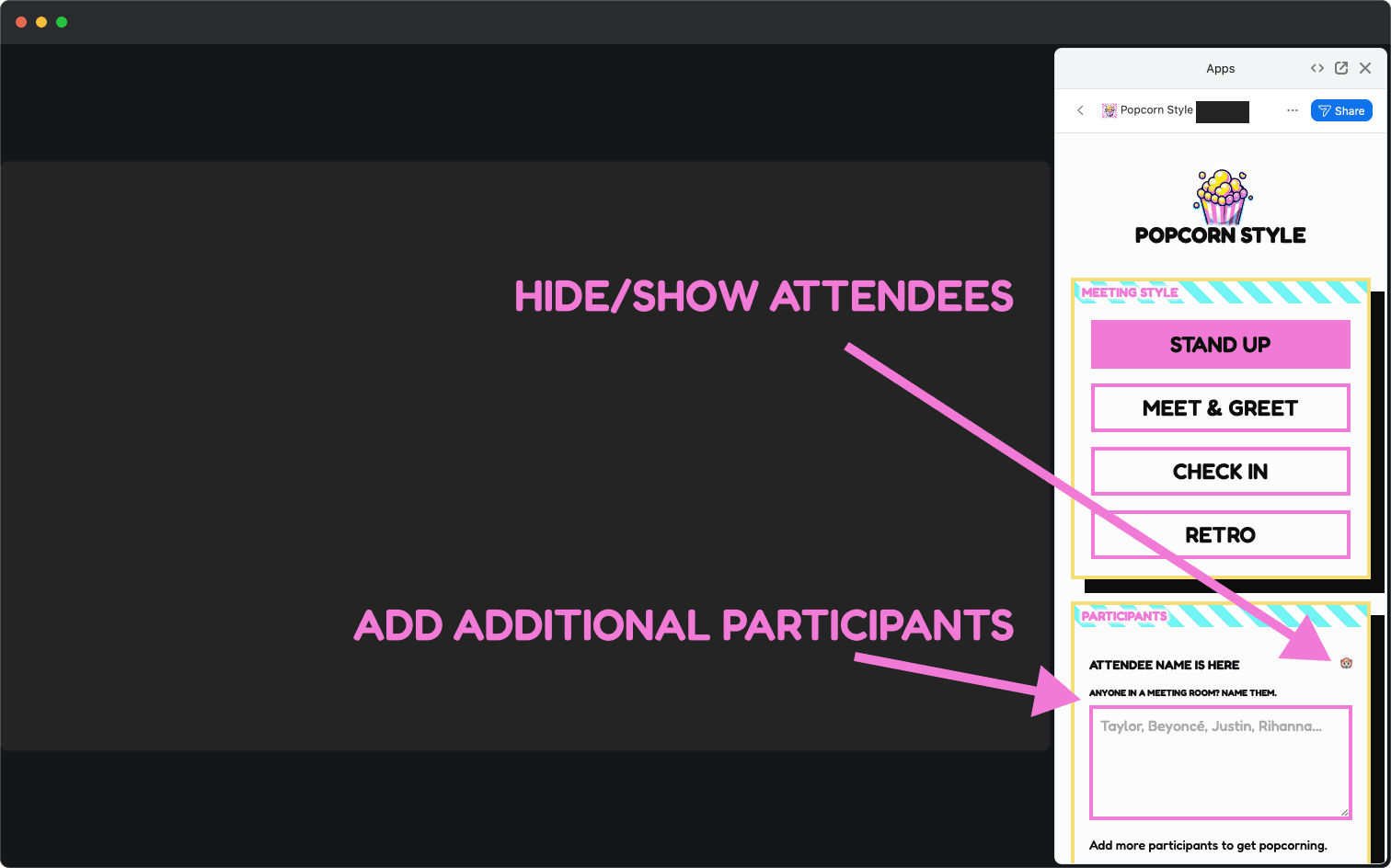
Meeting attendees will automatically display as participants in Popcorn Style. If you have several people in a single meeting room, use the show/hide feature to omit them and then manually add their names in the textbox below.
Starting the meeting
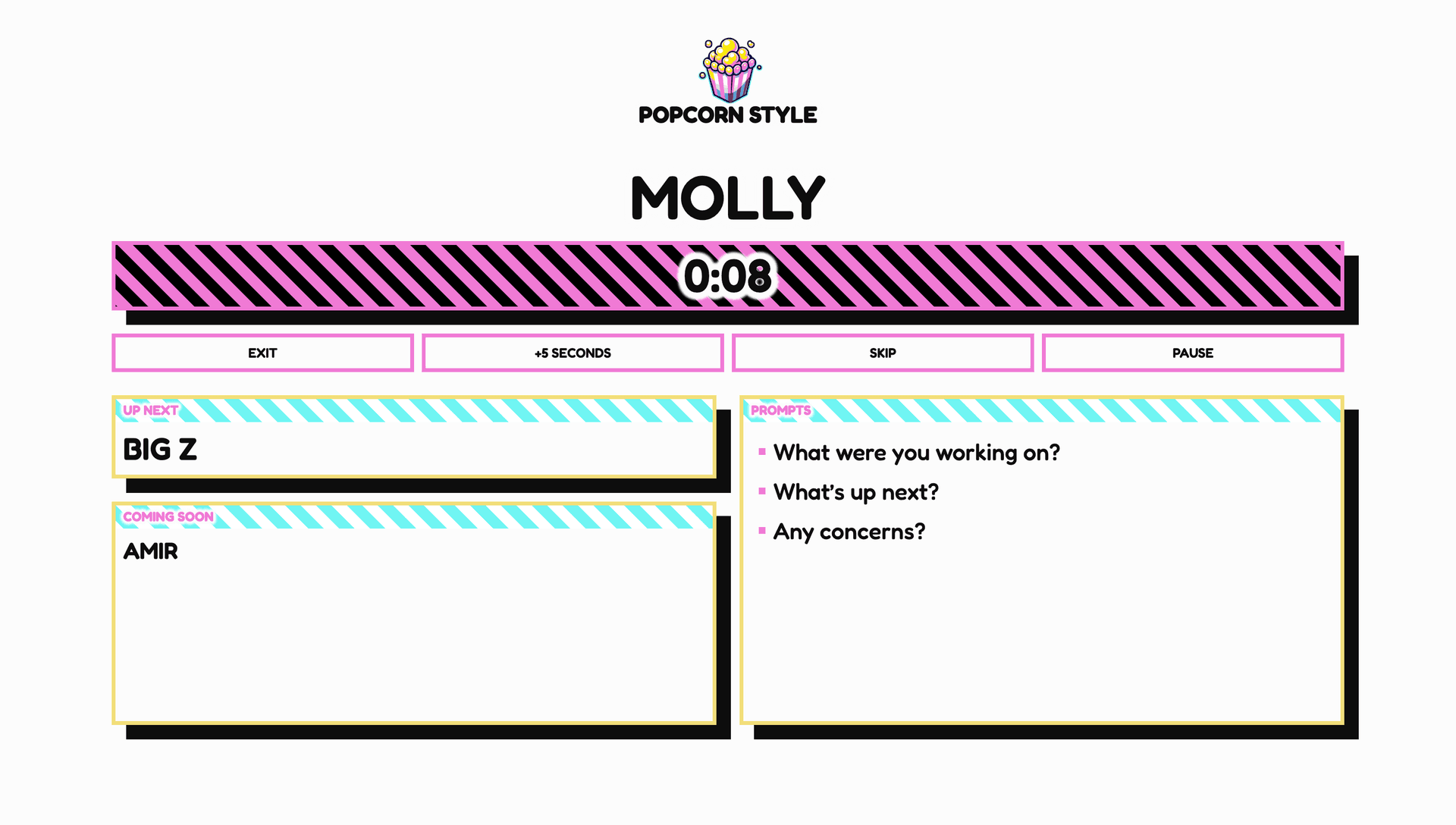
Press start. The app will share automatically with all the meeting participants. The order is randomized so be ready when it’s your turn!


Uninstalling the Zoom App
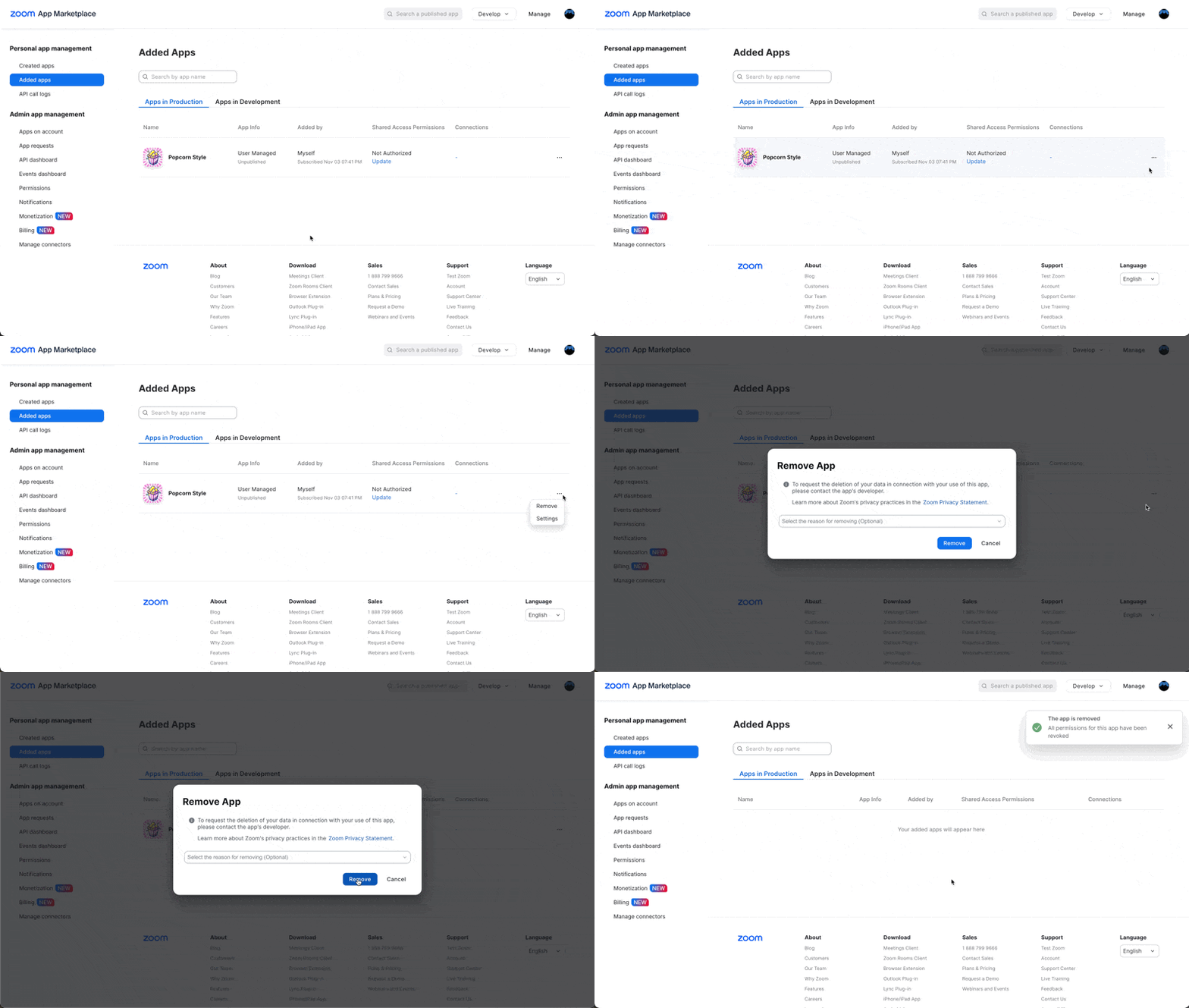
To uninstall, navigate to Installed Apps in the Zoom App Marketplace and choose Remove on Popcorn Style.
Popcorn Style deletes your Zoom connection and meeting data from our servers. We keep a small record of your free-plan usage so reinstalling doesn’t reset your monthly allowance.