
Installing Popcorn Style for Slack
Add Popcorn Style to Slack.
Click Add to Slack. You’ll be asked to sign in or create a Popcorn Style account first, so your workspace is linked to your team. Accounts are free for teams of up to 3, with no credit card required.
You need to be allowed to install apps in your workspace. If you aren’t, Slack will send the request to an admin for approval.
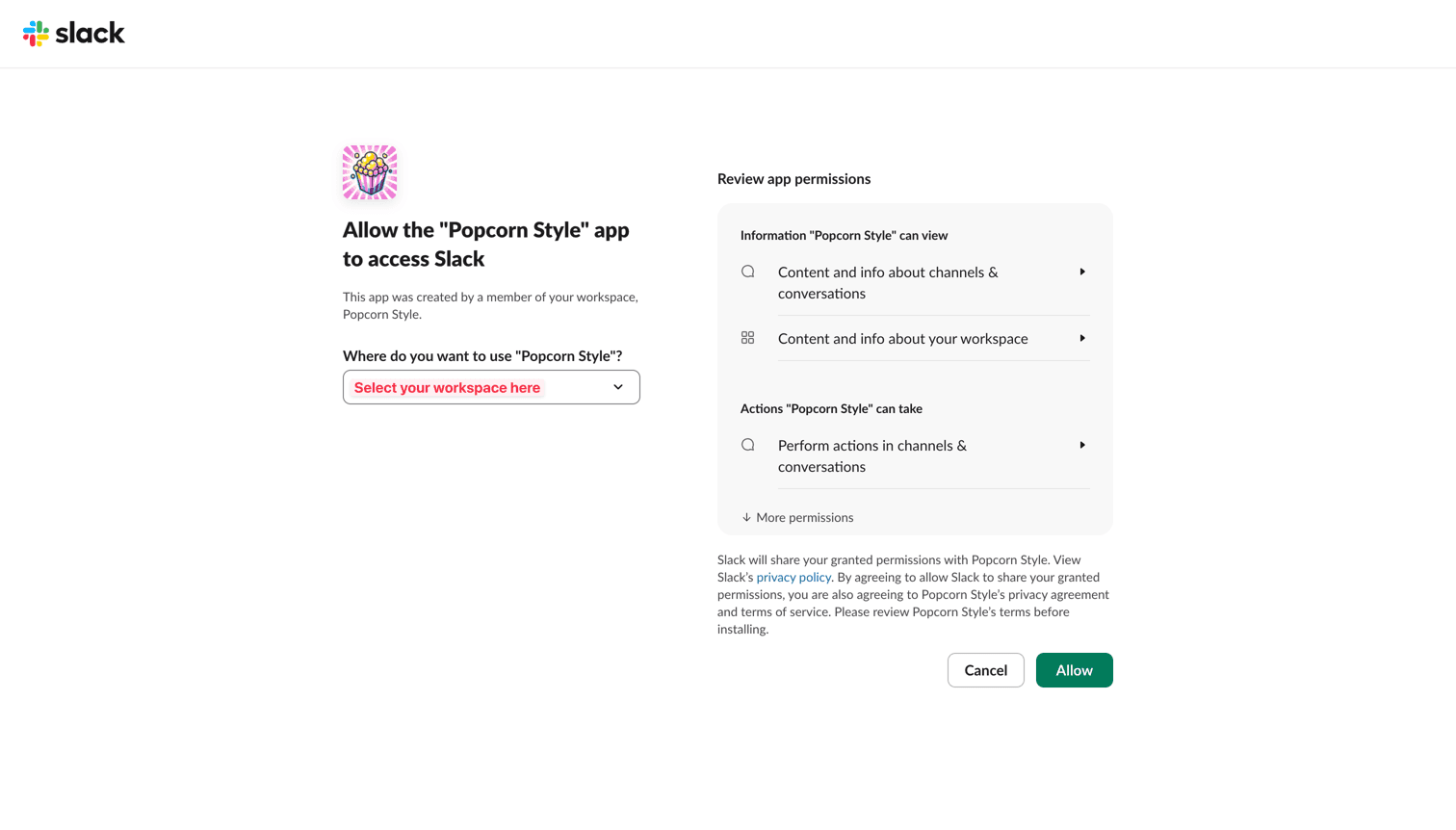
Add to SlackChoose a workspace and click Allow.
Slack shows you what Popcorn Style is asking for. It can only see channels it has been added to, and it never reads your direct messages.
Once you click Allow you’ll land back on Popcorn Style with a quick list of commands to get started. Here’s what you’re granting:
Invite it to a channel.
Head to the channel where your team should stand up and invite Popcorn Style. In a public channel it can join on its own the first time you run a command, but a private channel needs the invite.
Popcorn Style only ever posts in channels it’s been added to.
/invite @Popcorn Style- Add Popcorn Style to the channel you’re in
Run your first standup.
Type
/meet— or open the composer’s + / “/” menu and tap the Start a meeting shortcut. Popcorn Style posts the standup prompt and everyone in the channel answers in the thread whenever they get a chance.Halfway through, anyone who hasn’t posted gets a nudge. After half an hour the thread is wrapped up with an AI summary, and every so often someone gets a Golden Popcorn Award for what they said.
On the free plan your workspace gets 4 standups a month. Any paid plan makes them unlimited.
Give it a personality.
Popcorn Style is professional by default. Pick a different personality for a channel and every prompt, nudge, play-by-play and award in it follows suit.
Choose from casual, concise, funny, motivational or professional.
Put it on a schedule.
Tell Popcorn Style when to run and it kicks off the standup in that channel without anyone lifting a finger. Times are in your Slack time zone unless you add one to the end.
Use
/meet listto see what’s scheduled in a channel, and/meet list allfor every schedule you’ve made.Spin a wheel.
Build a wheel on Popcorn Style, add your options and set its sharing to My team — only shared wheels show up in Slack. Then run
/spin [name-of-wheel]— or tap the Spin a wheel shortcut — in any channel Popcorn Style is in, and it calls the action as the wheel slows down.Names work with dashes or spaces, and you only need enough of the name to tell wheels apart. Reset a wheel or put spins on a schedule the same way you do standups.
On the free plan your workspace gets 4 spins a month in Slack. Spinning in the browser is always free, and any paid plan makes Slack unlimited.

Uninstalling Popcorn Style for Slack
Open Manage apps in Slack, choose Popcorn Style and click Remove App. You can also get there from your workspace menu under Tools & settings.
As soon as Slack tells us the app is gone, Popcorn Style deletes your standups, schedules, channels and personalities from our servers. We keep a small record of your free-plan usage so reinstalling doesn’t reset your monthly allowance, and your wheels stay in your Popcorn Style account.
Something not working?
“Add @Popcorn Style to this channel and try again.”
Popcorn Style isn’t in the channel yet. Run
/invite @Popcorn Styleand try the command again.“I couldn’t find a wheel called…”
Only wheels shared with My team show up in Slack. Check the wheel’s sharing setting on Popcorn Style, then run
/wheel listto see what Slack can see.Popcorn Style asks you to reconnect or reinstall.
Slack occasionally needs a fresh set of permissions — for instance when Popcorn Style gains a new feature. When that happens you just need to re-authorize it with Slack. Your standups, schedules and everything else are safely saved, so no data is lost.
Reconnect SlackStill stuck?
Email us at contact@popcorn.style with your workspace name and we’ll sort it out.